


All analysis pages share the same header, and it works the same way everywhere:
- On the left, the menu title, then his views : the menu items, which you click to navigate. The active view is highlighted, and hovering over a view displays its description; ;
- On the right, there are two buttons: « Need help? », which opens the complete menu map with links to guides and educational resources; and the grid preview.
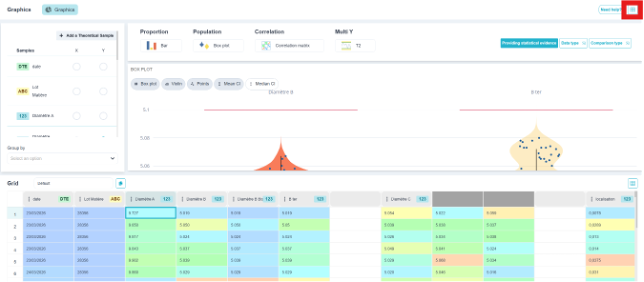
💡 The grid preview is worth checking out: it expands the grid at the bottom of any analysis page, with its grid selector. You can adjust a value, switch grids, and the analysis above updates automatically without losing its settings—unlike when you have to go back and forth through the project’s Grids menu.